
Published by the Jobbers.io editorial team · Last updated: August 2026
Your MacBook stops being just another laptop the day freelance work starts running through it. Every invoice, client call, or that half-finished draft at midnight lives on that one machine, and there is no IT department down the hall to fix it when something breaks.
Switching to a MacBook for freelance writing three years ago taught a fast lesson: the operating system rewards a bit of setup time. Spend an afternoon getting the settings and tools right, and the machine mostly stays out of the way after that. Skip it, and small annoyances pile up until they cost real hours during a week already packed with deadlines.
If you’re a freelancer, this guide walks through the exact tools and system settings you should configure from day one, so the machine works with you rather than against you.
Editorial note: This guide reflects hands-on freelance experience with macOS System Settings. Software features, pricing, and performance statistics — including third-party claims like malware detection rates — change as products update. Please verify current figures directly with the vendor or the independent testing lab linked below before making a purchasing or security decision based on this article.
1. Start by creating a proper user account first
One of the first steps you should take is to skip the temptation to work straight from an admin account on your Mac with every default left in place. Creating a separate standard user account keeps your work protected and organized — and in practice it also removes a layer of daily distraction, since the account you use for client work no longer has the power to change system-wide settings by accident.
Here are the simple and easy steps to add a standard user account on your Mac:
- Open Apple Menu > System Settings.
- Go straight to Users & Groups to add a new user account.
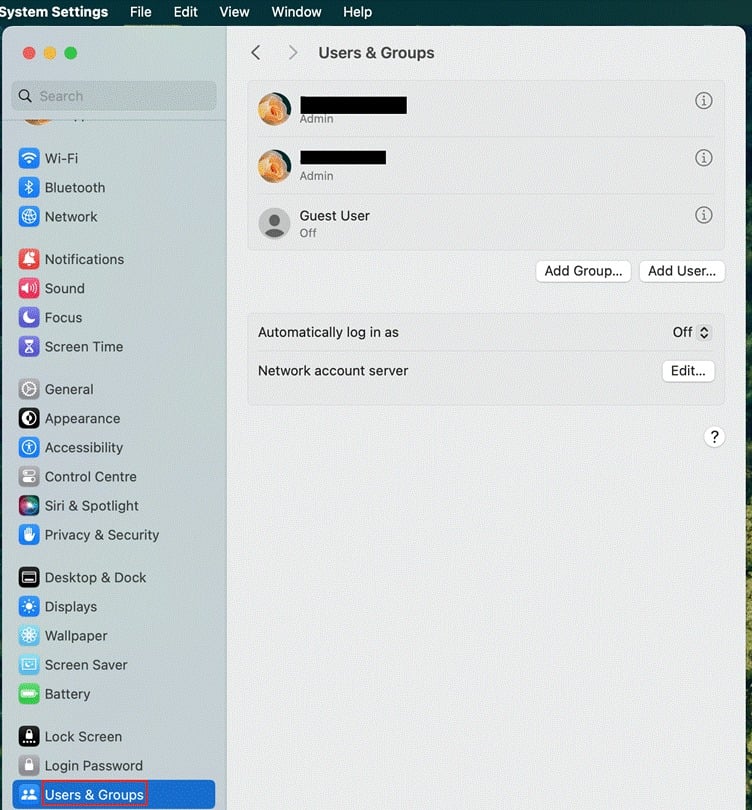
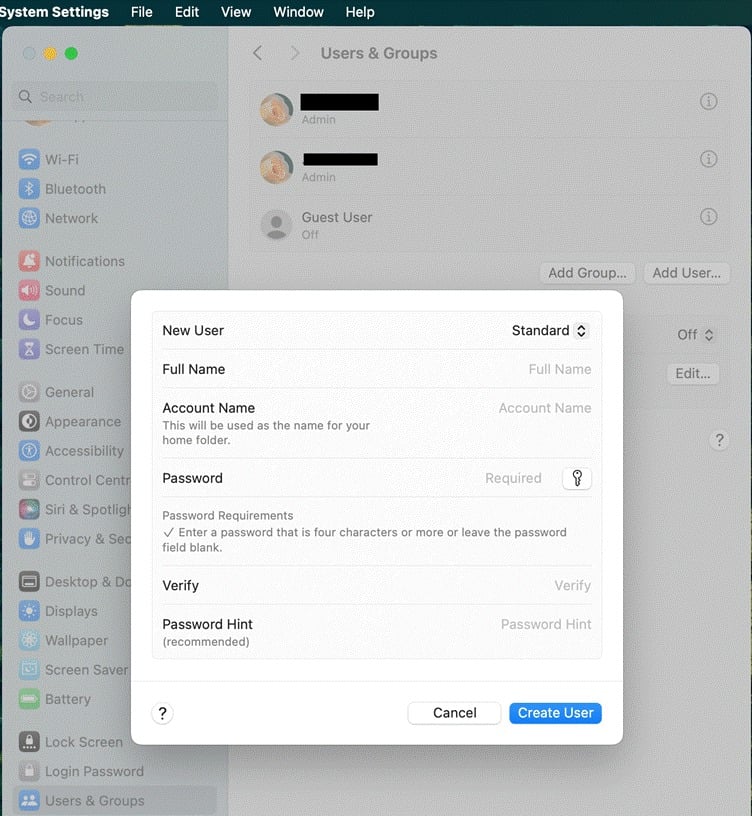
From here, you can add another user account for daily work, and keep the admin login for installs and system changes only. This one habit blocks a whole category of accidental changes and keeps a rogue app installer from touching your core system files.
2. Keep your device clean with a dedicated Mac maintenance tool
A freelance Mac is prone to collecting clutter, such as exported video files from a client project, old PDF drafts, or even browser caches from research sessions that never got cleared.
So, rather than manually hunting through folders every few weeks, you need a standing maintenance app that handles disk cleanup, memory management, and malware scanning from a single dashboard.
MacKeeper is an all-in-one Mac maintenance app that can handle cleaning, security, and performance from a single dashboard. The tool removes junk files, blocks adware, frees up RAM when apps start dragging, and reports a 99.7% malware detection rate — a figure independently corroborated by AV-TEST’s March 2025 macOS evaluation, which is worth checking directly since testing labs re-run these scores every few months.
For instance, I used to run three separate utilities on my Mac, each handling a specific function. Switching to MacKeeper consolidated everything in one place and considerably reduced the time spent on overall device maintenance. The built-in 24/7 expert chat has also been useful, especially during such times when something unexpected happens late before that big delivery.
3. Tame notifications and the menu bar
Freelancing means constant context switching between clients, and the Mac notification system will happily interrupt every one of those switches if left on default settings. Your Mac lets you set up Focus modes to ensure that during work hours, everything except what actually matters is muted.
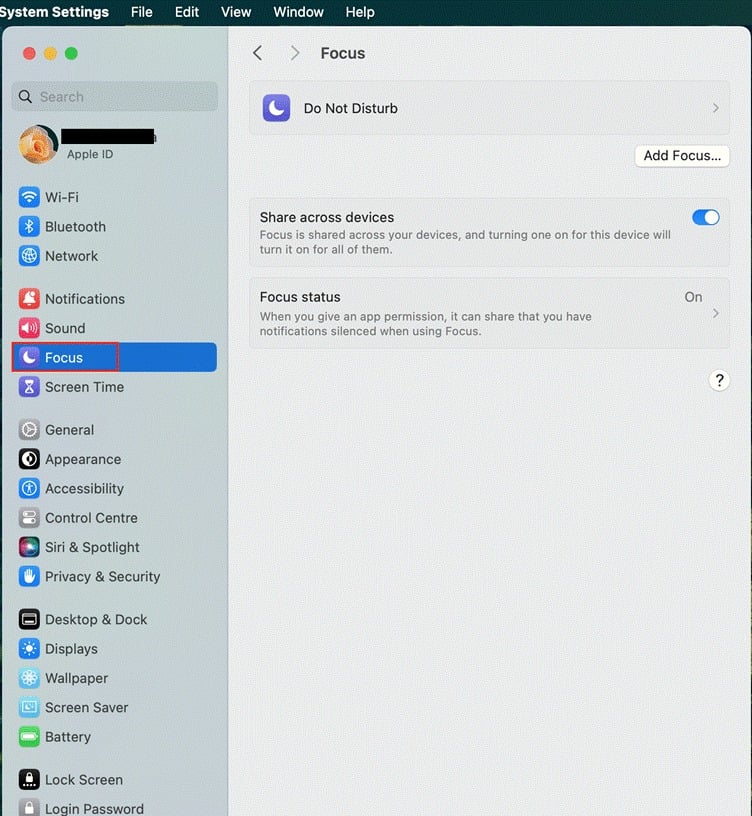
Here’s how to set up Focus Mode on your Mac:
- Open Apple Menu > System Settings > Click Focus in the sidebar.
- Go to an existing mode, such as Do Not Disturb, or click the Add Focus button.
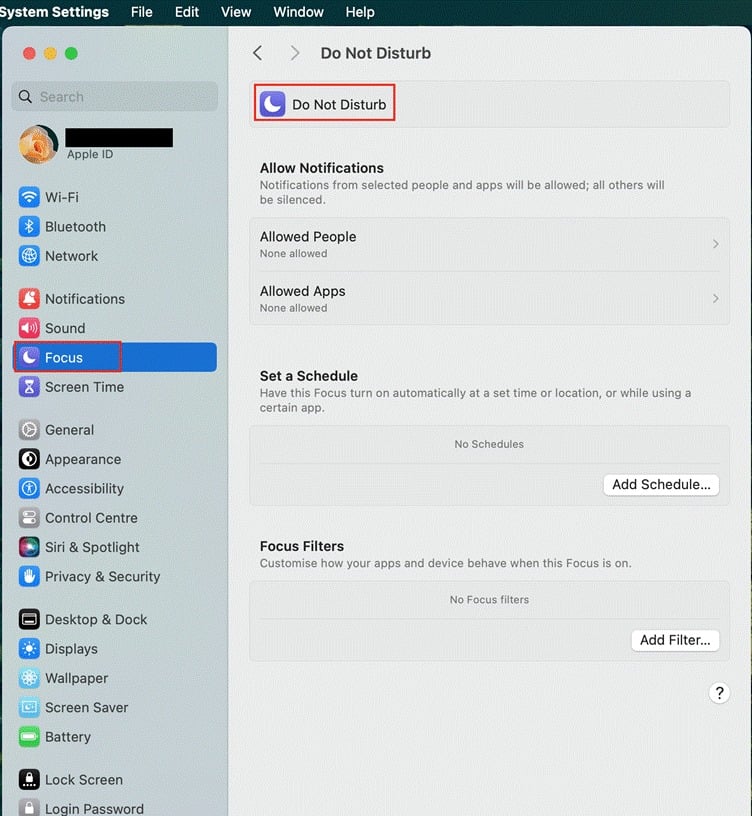
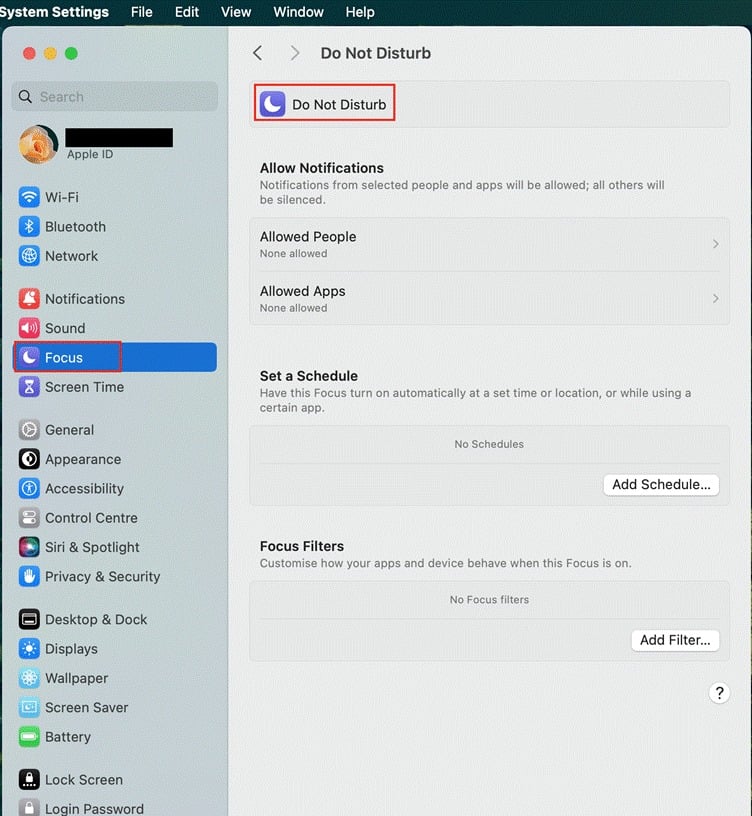
That easily cuts distractions by more than half for me when I need to really focus on priority projects with pressing deadlines.
The best part is I can still customize focus modes by adding apps or people who can reach out to me, especially when working on projects and needing constant communication with the client. Apple’s guide covers filters, schedules, and allow-lists in full: Set up a Focus on Mac (Apple Support).
4. Strengthen security
Freelancing, like any other business, depends on client data and project files to function; however, the risk is much higher. As a freelancer, I deal with contracts, invoices, passwords, and private client conversations every day.
One breach can not only derail all those tight deadlines but also expose sensitive data to unauthorized hands. That’s why some of my favorite settings on Mac are strong login passwords, an encrypted disk, and the built-in firewall — here are a few hints to share with you:
- I use long, unique passwords with letters, numbers, and symbols — a habit that lines up with CISA’s guidance on strong passwords.
- I have stopped my Mac from logging in on its own by disabling auto-login.
- I have enabled firewall protection to block unwanted incoming network connections.
- I’ve turned on FileVault to encrypt my startup disk, so the data can’t be read even if someone got hold of the drive itself.
For additional security, I’ve also been diligent about using complex passwords on all of my accounts, and I use multi-factor authentication (MFA) where I can for extra safety.
5. Create a comfortable work environment
Long work sessions become much easier when you make a few display adjustments on your Mac. For example, Night Shift on your Mac automatically changes your screen colors to the warmer end of the spectrum after dark, which Apple notes may help reduce eye strain and the impact of blue light on sleep.
Follow these steps if you want to enable and customize Night Shift settings on your Mac:
- Open Apple menu > System Settings.
- Go to Displays in the sidebar menu > Click on the Night Shift button.
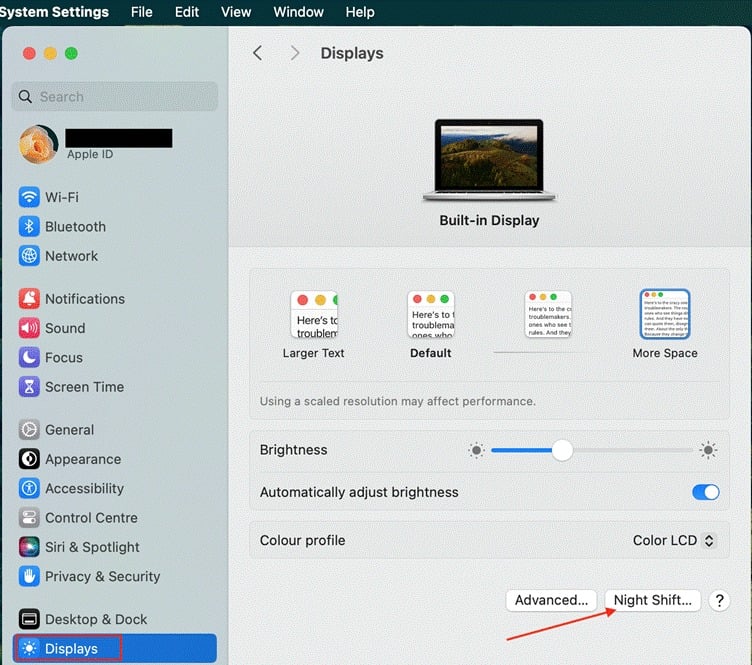
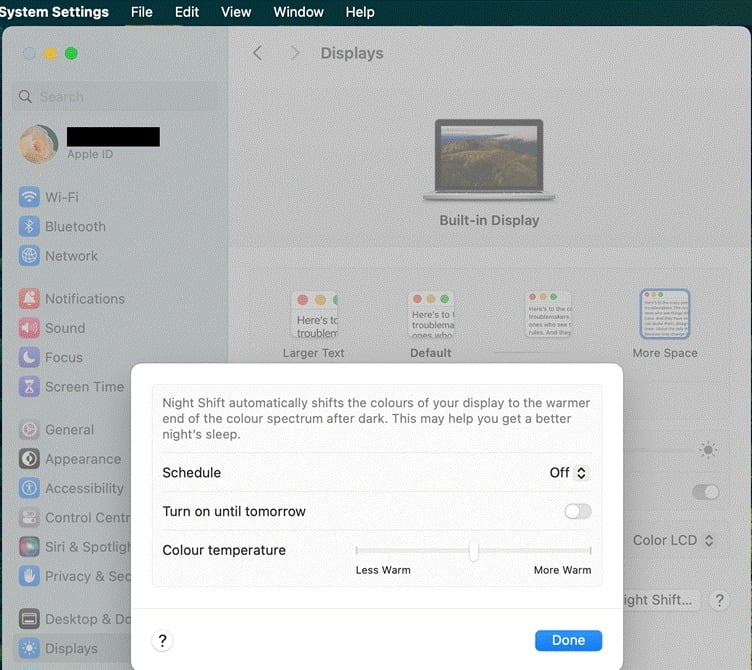
On top of that, increasing text size and adjusting trackpad sensitivity make it more comfortable to work for longer periods. Full details on scheduling and color temperature are in Apple’s guide: Use Night Shift on your Mac (Apple Support).
Conclusion
Setting up a Mac for freelance work is less about downloading everything available and more about choosing a short list of tools that solve specific problems.
Having a clean user account and enabling FileVault protects the work itself. Focus modes and a trimmed menu bar protect attention, which matters just as much as security when billing by the hour, while an all-in-one maintenance app handles the cleanup nobody wants to do manually.
None of this requires extensive time or investing in different tools, and it repays that effort back within the first busy week through every deadline and client call that follows. So, if you’re using your Mac for freelance work, get the settings right first, and everything gets easier.
Once the machine itself is dialed in, the other half of freelancing is keeping steady client work coming in. Platforms like jobbers.io are worth bookmarking alongside these settings: it doesn’t take a commission on what freelancers earn, and it lets freelancers and clients agree on payment terms directly instead of routing every invoice through a middleman.
Frequently Asked Questions
Does a MacBook need antivirus software for freelance work?
macOS includes built-in protections such as Gatekeeper and XProtect, but freelancers who handle client files, invoices, and passwords daily often add a dedicated tool for real-time scanning, adware blocking, and breach monitoring. Check independent test results, such as those from AV-TEST, before choosing one, since detection rates and features change with each software update.
How do I create a separate account for freelance work on my Mac?
Open System Settings > Users & Groups, click “Add User,” choose “Standard” (not Administrator), and set a unique password. Use this account for daily client work and reserve the admin account for installs and system changes only.
What does Focus mode actually block, and can clients still reach me?
Focus mode silences notifications from apps and people you haven’t allowed, but you can add specific contacts or apps — such as a key client — to an allow list so anything urgent still gets through. It can also be scheduled to turn on automatically during work hours.
Is FileVault necessary if I already use a strong login password?
A login password stops casual access, but FileVault encrypts the entire disk so the files on it can’t be read even if the drive is removed and connected to another computer. For anyone storing client contracts or financial records, that extra layer is worth the one-time setup step.
Does Night Shift actually reduce eye strain during long freelance sessions?
Night Shift shifts on-screen colors toward warmer tones in the evening, which many users find easier on the eyes, and Apple notes it may help reduce the effect of blue light in the evening. It isn’t a substitute for regular breaks, good lighting, or an eye exam if strain continues.
How long does a full freelance Mac setup take?
Most of these settings — user account, Focus modes, FileVault, firewall, Night Shift — can be configured in under an hour. A maintenance app adds a few more minutes to install and run its first scan.
Where can freelancers find new clients once their Mac is set up?
Marketplaces are the fastest route once the machine itself is ready. Browsing freelance jobs on a commission-free platform is a common starting point, since freelancers and clients can agree on payment terms directly instead of routing every invoice through a platform fee.
Create your freelance profile
Join Jobbers and start applying to projects today. No commission.